
“How to remove paragraph symbols in Outlook?”is one of the most searched email formatting questions and for good reason.
You open an email and suddenly strange ¶ marks appear everywhere, making your message look messy and unprofessional.
It feels distracting, confusing, and sometimes even embarrassing before you hit send. This guide will show you exactly why those symbols appear and how to turn them off quickly on every version of Outlook.
What Are Paragraph Symbols In Outlook?
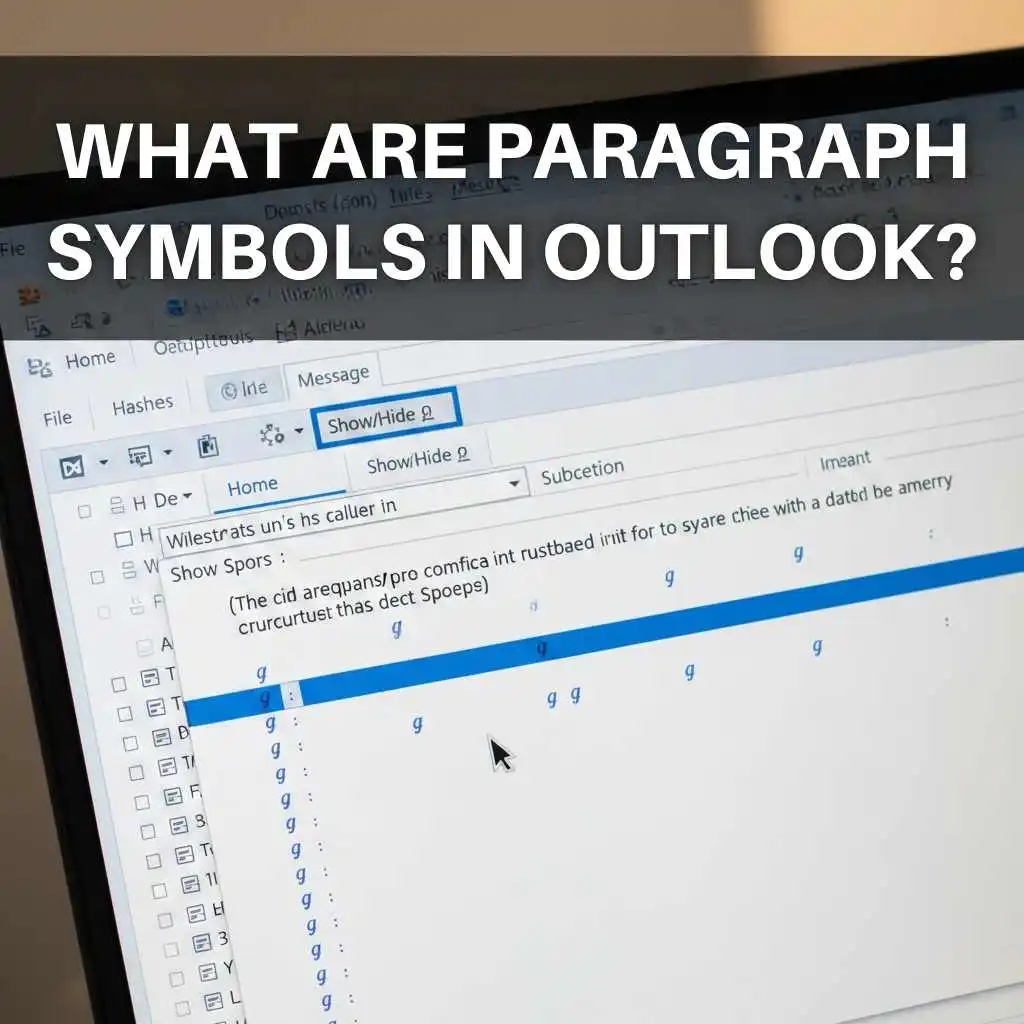
Paragraph symbols, also called pilcrow marks ¶, are formatting marks that show where a paragraph ends. They are invisible in normal viewing mode but appear when formatting is turned on.
In Microsoft Outlook, these symbols appear when the Show Formatting option is enabled. They do not print and they do not appear in emails sent to others. They only help you see hidden formatting.
These symbols can reveal:
- Paragraph breaks
- Line breaks
- Extra spaces
- Hidden formatting issues
Think of them as behind the scenes markers. They show structure, not content.
Why Paragraph Symbols Appear In Outlook & How To Turn Them Off
Why Do Paragraph Symbols Appear In Outlook
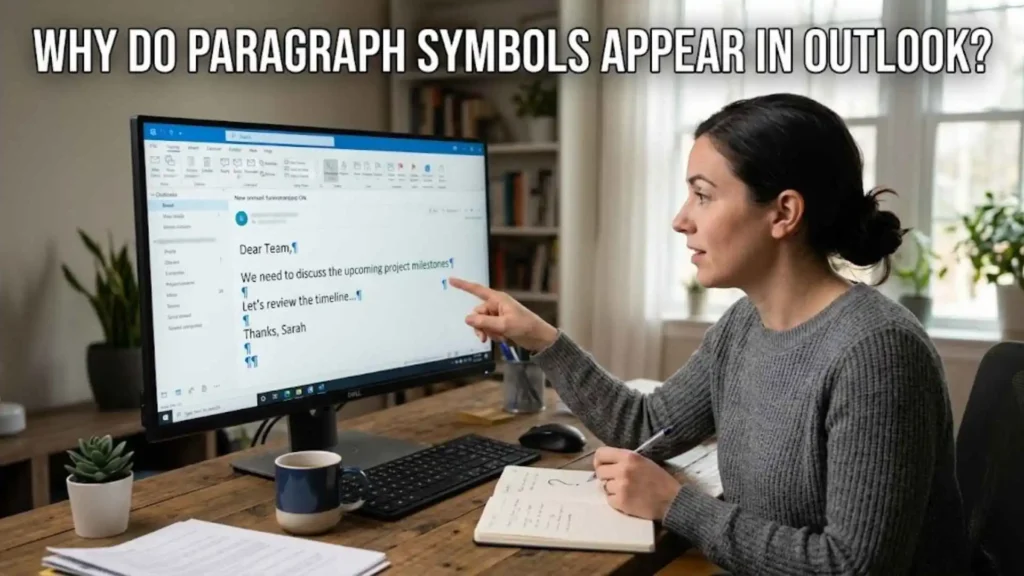
Paragraph symbols appear when formatting marks are enabled. This usually happens if you accidentally click the ¶ (Show/Hide) button in the toolbar.
These symbols are not visible to email recipients — they only help you edit content more precisely.
Turn Off Formatting Marks Outlook
To turn off formatting marks:
- Open Outlook email editor
- Go to Format Text tab
- Click on the ¶ (Paragraph Symbol) icon
This will instantly hide all formatting marks.
How To Turn Off The Paragraph Symbol In Outlook
- Open a new email
- Navigate to Format Text
- Click the ¶ button again to toggle it off
How To Turn Off Paragraph Marks In Outlook
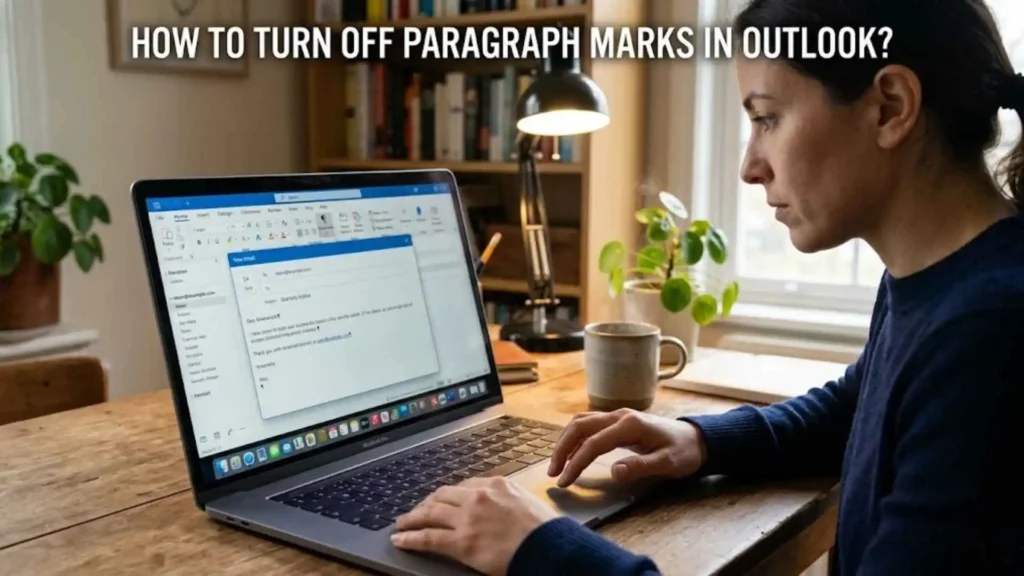
You can also disable this from settings:
- Go to File > Options > Mail > Editor Options
- Click Display
- Uncheck Paragraph marks
Turn Off Paragraph Marks In Outlook
This method works for most Outlook versions and ensures the symbols stay hidden unless manually enabled again.
How To Remove Paragraph Symbols In Outlook (All Versions & Devices)
How To Remove Paragraph Symbols In Outlook
The easiest way:
- Open email
- Click ¶ icon in toolbar
Remove Paragraph Marks In Outlook
Simply toggle off formatting marks using the same ¶ button.
How To Remove Paragraph Marks In Outlook
You can remove them permanently via settings:
- File > Options > Display
- Disable formatting marks
How To Get Rid Of Paragraph Symbol In Outlook
If it keeps appearing:
- Check if it’s enabled in editor settings
- Disable it from Editor Options
How To Remove The Paragraph Symbol In Outlook
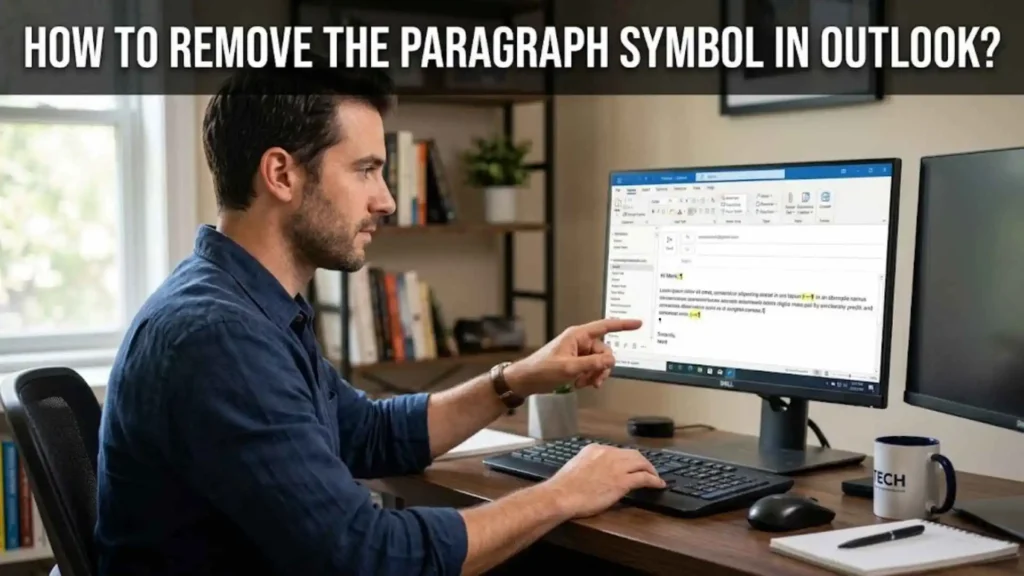
This works across all versions:
- Use Format Text → ¶ toggle
Outlook Remove Line Break Symbol
Line break symbols are also part of formatting marks. Turning off ¶ will remove them too.
How To Remove In Outlook Email
- Open your email
- Click Format Text
- Disable 
How To Remove Paragraph Symbols In Outlook Email
This applies to composing or replying to emails:
- Toggle off paragraph marks
How To Remove Paragraph Symbols In Outlook Emails
Works for all emails:
- Disable formatting marks globally
Outlook On The Web Clear Formatting Eraser Icon
If you’re using Outlook Web:
- Highlight text
- Click Clear Formatting (eraser icon)
This removes paragraph symbols and extra formatting.
Version-Specific Solutions (365, Mac, 2010–2021 & More)
How To Remove Paragraph Symbols In Outlook App
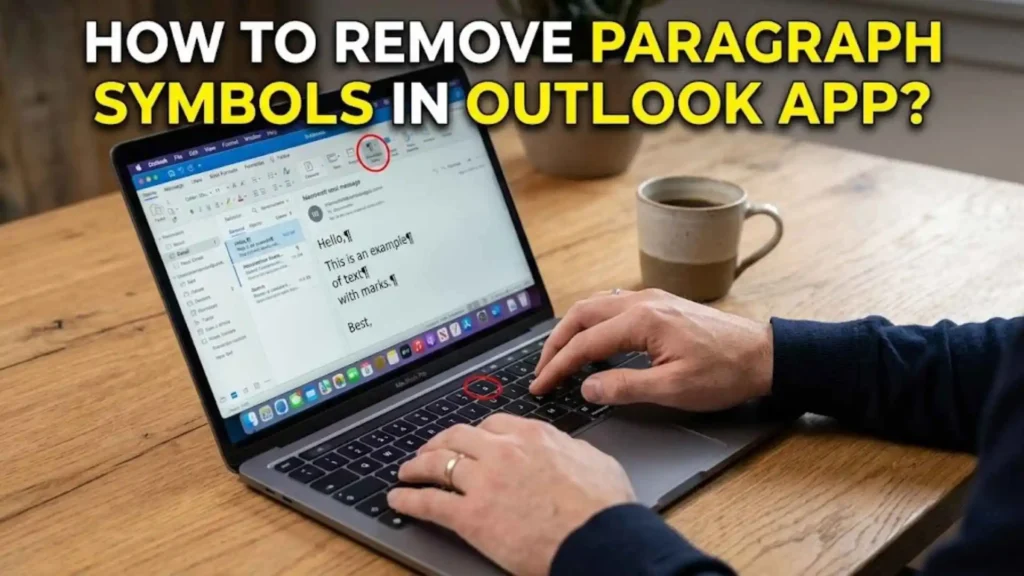
- Open Outlook app
- Go to email editor
- Tap or click ¶ icon
How To Remove In Outlook 365
- Open new message
- Go to Format Text
- Disable paragraph marks
Turn Off Paragraph Marks In Outlook 365
- File → Options → Display
- Uncheck paragraph marks
How To Remove Paragraph Symbols In Outlook 365
Same steps apply:
- Toggle ¶ or disable via settings
How To Remove Paragraph Symbols In Outlook Permanently
To permanently disable:
- File → Options → Mail
- Editor Options → Display
- Uncheck all formatting marks
How To Remove Paragraph Symbols In Outlook Calendar
- Open calendar event
- Click formatting toolbar
- Disable 
How To Remove Paragraph Symbols In Outlook 2021
- Go to Format Text tab
- Turn off paragraph marks
How To Remove Paragraph Symbols In Outlook 2016
- Open email editor
- Click ¶ icon
How To Remove Paragraph Symbols In Outlook 2020
Same as other versions:
- Toggle formatting marks
How To Remove Paragraph Symbols In Outlook 2010
- Format Text → ¶ button
How To Remove Paragraph Symbols In Outlook Mac
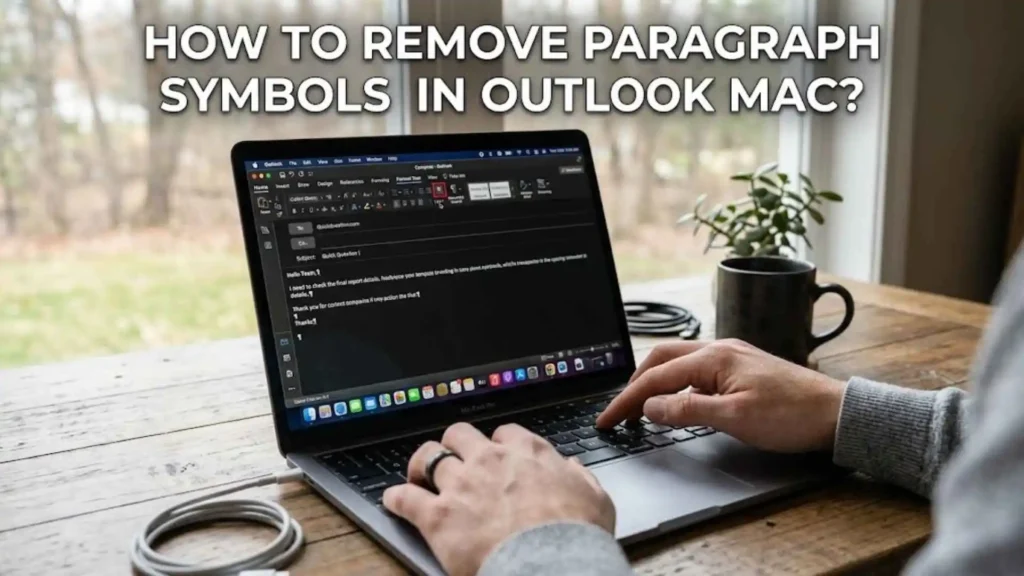
On Mac:
- Open Outlook
- Go to message editor
- Click ¶ icon in toolbar
Why Do Paragraph Symbols Suddenly Appear?
Most people do not turn them on intentionally. Here are the most common reasons:
- You accidentally pressed Ctrl + Shift + 8
- You clicked the formatting icon in the toolbar
- You copied text from Microsoft Word
- You pasted content from a website
- Your email switched to rich text format
Sometimes Outlook remembers your last formatting preference. So if formatting marks were enabled once, they may appear again when composing new emails.
How To Remove Paragraph Symbols In Outlook Desktop App
Follow these steps for the desktop version of Microsoft Outlook:
Method 1: Use The Toolbar Button
- Open a new email message.
- Go to the Format Text tab.
- Look for the ¶ icon in the Paragraph section.
- Click it once.
The paragraph symbols will disappear immediately.
Method 2: Use Keyboard Shortcut
Press:
Ctrl + Shift + 8
This toggles formatting marks on or off instantly.
This is the fastest solution if you need a quick fix.
How To Remove Paragraph Symbols In Outlook 365
If you use Microsoft Outlook 365:
- Click New Email.
- Select the Format Text tab.
- Click the ¶ symbol.
- Ensure your message format is set to HTML instead of Rich Text.
If symbols still appear, check your default editor settings:
- Click File
- Go to Options
- Select Mail
- Click Editor Options
- Go to Display
- Uncheck formatting marks
How To Remove Paragraph Symbols In Outlook Web Version
In Outlook on the Web:
- Open a new message.
- Click the three dots in the formatting toolbar.
- Look for formatting options.
- Turn off any visible formatting mark option.
The web version usually does not show paragraph symbols unless special formatting is enabled.
How To Remove Paragraph Symbols In Outlook Mac
If you are using Outlook for Mac:
- Open a new email.
- Click the Format Text tab.
- Find the ¶ icon.
- Click to toggle off.
You can also press:
Command + 8
That shortcut removes formatting marks instantly.
If Paragraph Symbols Won’t Disappear
Sometimes the issue is not the formatting toggle. Try these fixes:
Change Email Format
- Open the email
- Click Format Text
- Select HTML
Avoid Rich Text when possible. HTML keeps formatting cleaner.
Clear Formatting
- Highlight all text
- Click Clear All Formatting
- Reapply basic formatting
Paste Without Formatting
If copying from websites:
- Right click
- Choose Paste as Plain Text
This removes hidden formatting codes.
Do Paragraph Symbols Show To Email Recipients?
No. Paragraph symbols are only visible to you while composing.
Even if you see dozens of ¶ marks, your recipient will never see them in their inbox.
They are editing tools, not visible characters.
Why Outlook Uses Paragraph Symbols
Formatting marks exist for precision. They help with:
- Fixing spacing problems
- Identifying extra blank lines
- Cleaning copied content
- Aligning professional email layouts
For advanced users, they are helpful. For most people, they are unnecessary clutter.
Common Formatting Issues Caused By Paragraph Marks
When formatting marks are on, users often panic thinking something is wrong.
Here are typical visual signs:
- Multiple ¶ symbols after every line
- Extra blank spacing
- Strange alignment shifts
- Unexpected line breaks
Most of the time, simply toggling formatting off solves everything.
Best Practices To Avoid Formatting Problems In Outlook
To keep emails clean and professional:
- Always paste as plain text
- Use HTML format instead of Rich Text
- Avoid copying directly from websites
- Keep formatting simple
- Use consistent fonts
Professional emails should look simple, readable, and structured.
FAQs About How To Remove Paragraph Symbols In Outlook
Why do I see paragraph symbols in Outlook?
They appear because formatting marks are turned on.
How do I permanently turn off paragraph symbols?
Go to Outlook Options, open Editor Settings, and uncheck formatting marks.
Do paragraph symbols affect email delivery?
No. They do not affect sending, receiving, or printing.
What is the shortcut to remove paragraph symbols in Outlook?
Press Ctrl + Shift + 8 on Windows or Command + 8 on Mac.
Why do paragraph symbols appear after copying from Word?
Microsoft Word uses formatting marks that carry over when pasted into Outlook.
Final Thoughts
Seeing strange ¶ marks in your email can feel alarming at first. But now you know they are harmless formatting guides, not errors. With one simple click or shortcut, you can remove paragraph symbols in Outlook and restore your email to a clean, professional look.
Once you understand how formatting works, Outlook becomes easier and more powerful to use. Clean emails build trust. And trust builds better communication.
Explore More Symbols:
- 119+ Spiritual Symbols and Meanings Explained | Discover the Powerful Truth Behind Ancient Signs
- 93+ Powerful Holy Thursday Symbols That Reveal the True Meaning of the Last Supper
- 67+ Powerful Voodoo Symbols The Hidden Meanings, Secrets and Spiritual Power Behind Every Sign for 2026

Julian Shaw
I’ve always been fascinated by the small, quiet stories that make life feel magical. Writing allows me to explore worlds that exist just beyond the everyday, where imagination meets reality. Over the years, I’ve found joy in creating characters that feel real and stories that stay with readers long after the last page. When I’m not writing, you can usually find me wandering through city streets, notebook in hand, capturing little sparks of inspiration. I believe every story has the power to connect us, to make us feel a little less alone. Sharing these tales is my way of leaving a mark on the world.
Books:
-
Whispers in the Wind
-
Shadows of Tomorrow